Pre-release Documentation for Ascent Direct Booking. Not yet approved for commercial release. View availability details
Install on a compatible WordPress website
The installer used here is Ascent Booking 1.2.104-ab-self-service.integrated-r11. Its header says it requires PHP 8.5.2. The fixture ran on that PHP and on WordPress 7.1.2.
On this page
Upload the installer
- Role
- Site administrator
- Prerequisites
- A WordPress site whose PHP matches the installer. This installer says it requires PHP 8.5.2. The fixture used that PHP and WordPress 7.1.2.
- Menu path
- Plugins → Add Plugin → upload
Field reference
| Field | Example | What it does |
|---|---|---|
| Choose file | The Ascent Booking .zip for 1.2.104-ab-self-service.integrated-r11 | Selects the installer. It does not activate it. |
| Install Now | Press the button after the file is chosen | WordPress installs the plugin. This fixture opened the screen after that installer was already active. |
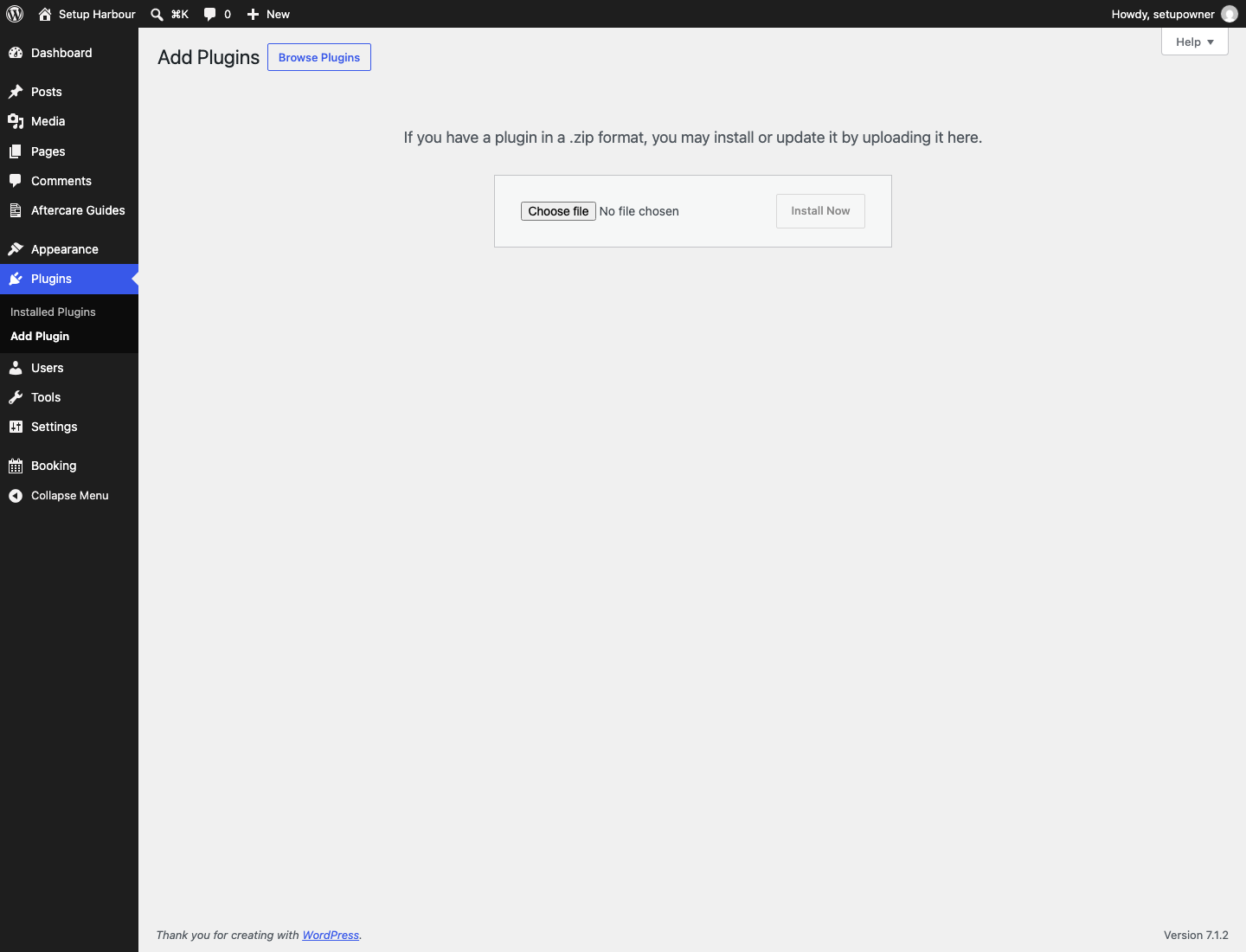
Action. Open the upload screen and use Choose file, then Install Now.
Saved result. The screen says a plugin in a .zip format may be installed or updated by uploading it here.
Reload check. Return to Plugins. The new plugin should be listed. On this fixture it was already listed before the upload screen was opened.
Safe recovery. If installation reports an error, keep the exact message and check Plugins for the current installation and version before taking another action. Do not delete or replace an existing installation as a generic retry: its records and configuration must be preserved. Ask the site administrator to confirm whether this was a new installation or an update and the appropriate recovery. A failed-upload recovery was not exercised in this walk.
Confirm Ascent Booking is active
- Role
- Site administrator
- Prerequisites
- The installer has been uploaded.
- Menu path
- Plugins
Field reference
| Field | Example | What it does |
|---|---|---|
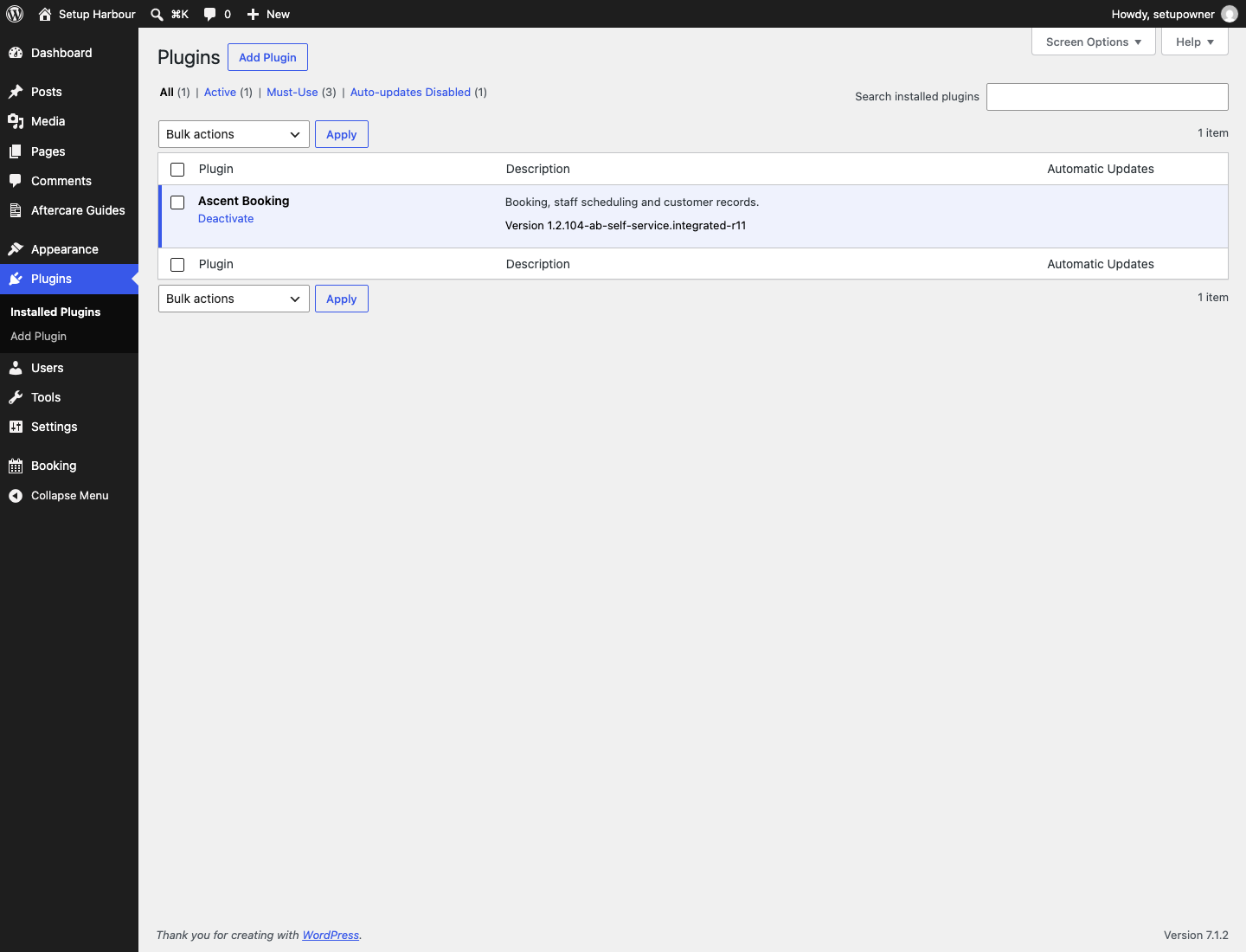
| Ascent Booking row | Version 1.2.104-ab-self-service.integrated-r11 | Identifies the candidate these instructions describe. |
| Deactivate | Shown under the plugin name | Means the plugin is active. Activate would mean it is not. |
Action. Read the Plugins row. If it says Activate, press Activate.
Saved result. The description reads “Booking, staff scheduling and customer records”. Activation on this fixture also created Service booking, Customer visits, Practitioner portal, Booking owner, and My details.
Reload check. Reload Plugins. The same version and Deactivate remain.
Safe recovery. If the row is missing, repeat the upload. Do not rename the plugin folder by hand.
Next, designate the business owner. The site administrator is not the owner.