Pre-release Documentation for Ascent Direct Booking. Not yet approved for commercial release. View availability details
Configure the business
Do the currency and timezone save before any record locks them. The later forms for a second service and a second practitioner were visible. Only the first service, the first practitioner, and one question were saved and reloaded.
On this page
- Designate the first business owner
- Open Booking owner as that owner
- Save business details before currency and timezone lock
- Save the first service
- Save the first practitioner and weekly hours
- Publish the booking page
- Add another service
- Choose eligible practitioners
- Add another practitioner and hours
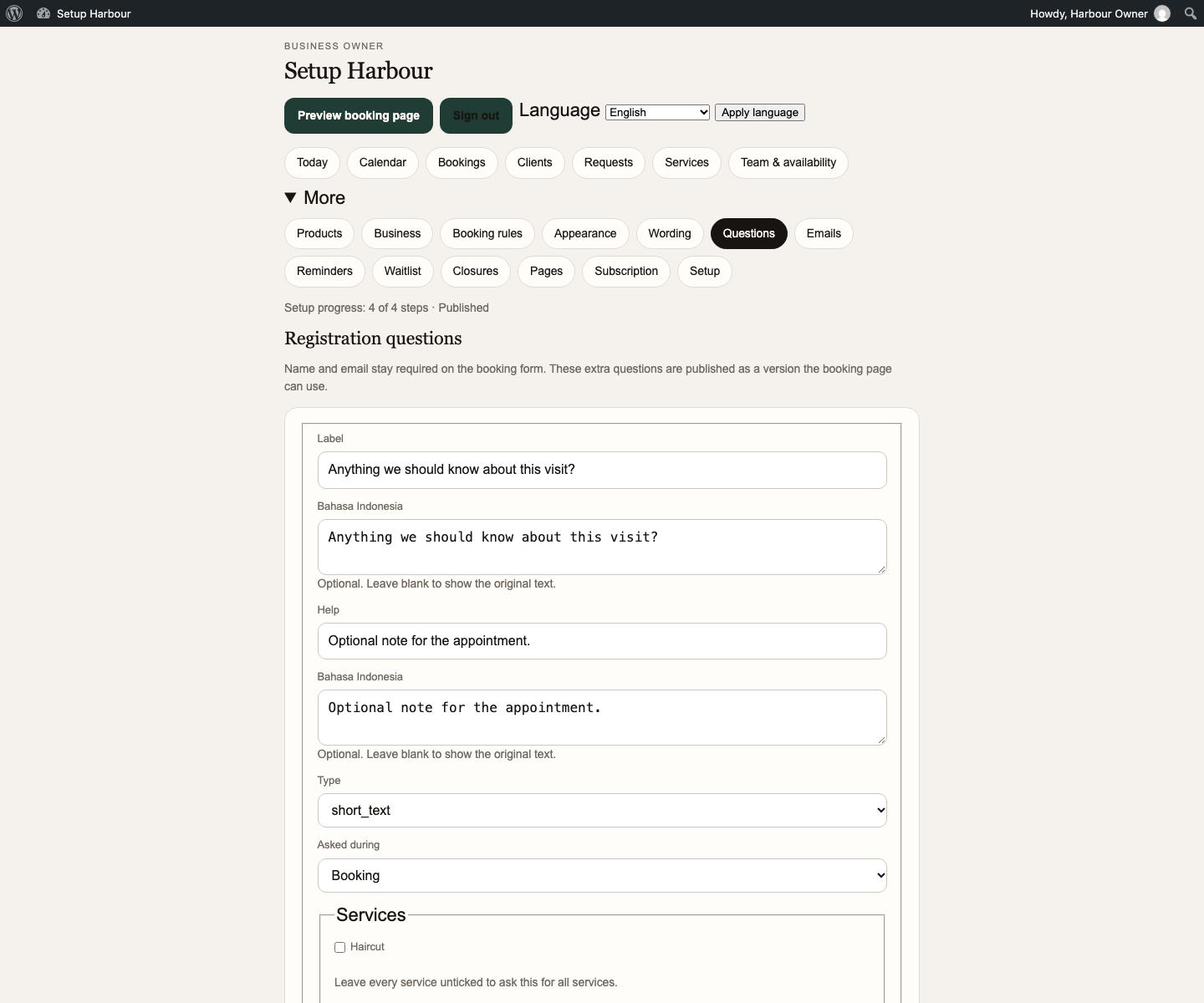
- Draft and publish one ordinary question
- Appearance, email, and exceptions
Designate the first business owner
- Role
- Site administrator, signed in
- Prerequisites
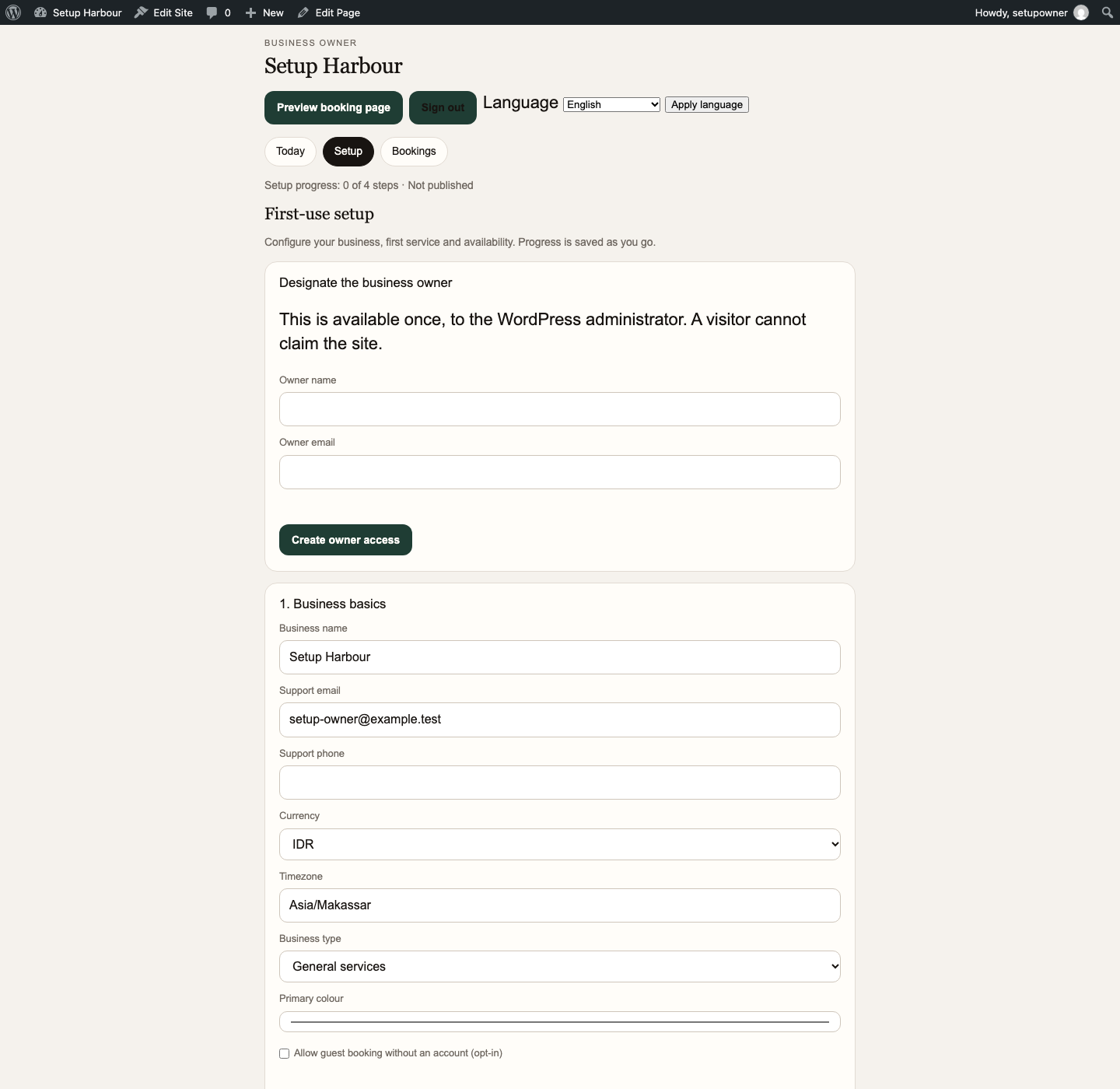
- No business owner exists yet. A visitor cannot claim the site.
- Menu path
- Booking owner → Setup
Field reference
| Field | Example | What it does |
|---|---|---|
| Owner name | Harbour Owner | The person’s name. It is not the business name. |
| Owner email | A mailbox that person can open | Used for password reset. The password is not shown on this form. |
Action. Enter the name and email, then press Create owner access.
Saved result. The designate form leaves the page. The installed application’s result for that step says the owner can sign in and use password reset, and that the password is not shown.
Reload check. Sign out and open Booking owner. The designate form does not return for a second owner.
Safe recovery. If the form remains and shows an error, correct the email and submit once. Do not create a second administrator to bypass it. This fixture did not print or store the owner password in the guide.
Open Booking owner as that owner
- Role
- Business owner
- Prerequisites
- The designate step has been done. You have a way to sign in. This fixture reached the owner screens with a local sign-in helper after designation. It did not prove that a password-reset message arrived in an inbox. The later publish screen says a mail filter does not prove that messages are captured or delivered.
- Menu path
- Booking owner. Signed out, the page says “Sign in with your business owner account to continue” and offers Owner sign in.
Action. Use Owner sign in, then the password reset for the owner email if you do not already have a password.
Saved result. The signed-in owner sees Business owner, Setup, and Setup progress. The administrator account is not required for the later owner steps.
Reload check. Sign out and sign in again. Setup progress is still there.
Safe recovery. If Owner sign in returns to the WordPress sign-in screen and the account cannot be entered, use the password reset for the designated email. Do not publish the password. If reset mail cannot be shown to have arrived, access is not ready.
Save business details before currency and timezone lock
- Role
- Business owner
- Prerequisites
- You are signed in on Booking owner → Setup. No booking records exist yet. On this fresh fixture the form opened with Currency IDR, Timezone Asia/Makassar, and Business type General services.
- Menu path
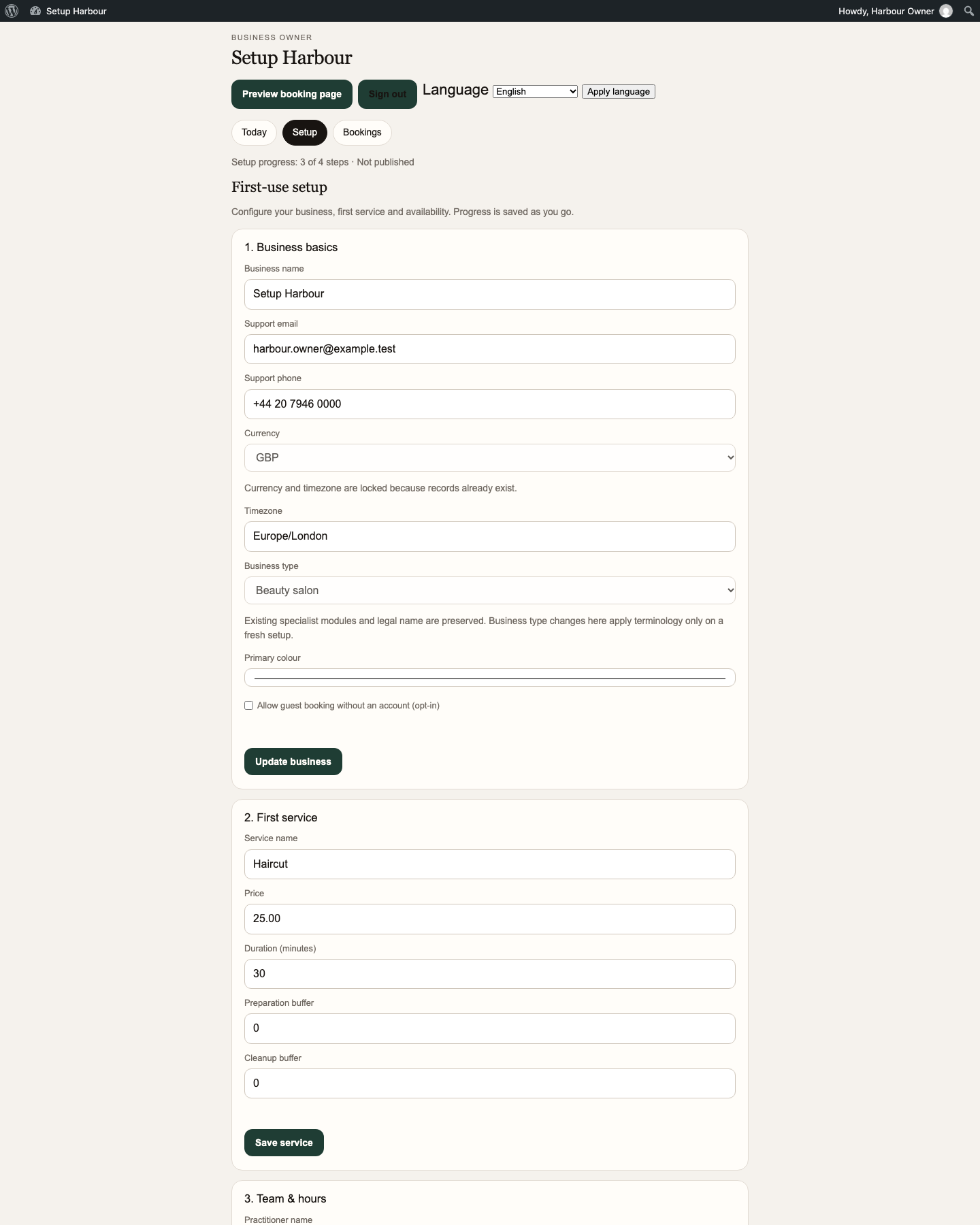
- Booking owner → Setup → 1. Business basics
Field reference
| Field | Example | What it does |
|---|---|---|
| Business name | Setup Harbour | Shown on the booking page. |
| Support email | The mailbox customers can use | Stored as the support address. |
| Support phone | The business phone | Stored with the business details. |
| Currency | GBP or IDR. This walk saved GBP. | Used for later prices. It locks after records exist. |
| Timezone | Europe/London on this walk | Used for the business clock. It locks after records exist. |
| Business type | Beauty salon on this walk. The choices are Massage, Beauty salon, and General services. | On a fresh setup it changes terminology. The fixture later said specialist modules and the legal name are preserved. |
| Primary colour | Left unchanged | A colour picker. This walk did not use it as the appearance proof. |
| Allow guest booking without an account (opt-in) | Left unticked | Left off, the confirm step asks the visitor to log in. |
Action. Set currency and timezone first, then press Save business.
Saved result. The values remain. After records exist the form says “Currency and timezone are locked because records already exist.” The button then reads Update business.
Reload check. Open Setup again. Name, currency, and timezone are still the saved values.
Safe recovery. Before the lock sentence, change currency or timezone and save again. After the lock sentence, this walk could not change them. Guest booking stayed off when it was left unticked.
Save the first service
- Role
- Business owner
- Prerequisites
- Business basics have been saved, including currency and timezone.
- Menu path
- Booking owner → Setup → 2. First service
Field reference
| Field | Example | What it does |
|---|---|---|
| Service name | Haircut | The name customers see. |
| Price | 25.00 | Stored in the currency already saved. This is a fixture example, not a recommended price. |
| Duration (minutes) | 30 | A fixture example, not treatment guidance. |
| Preparation buffer | 0 | Minutes before the service. Not a second service. |
| Cleanup buffer | 0 | Minutes after the service. |
Action. Replace any suggested starter values, then press Save service.
Saved result. The service remains on the form. After publication, Services lists Haircut, GBP 25.00, 30 min, Bookable Yes.
Reload check. Reopen Setup or Services. Haircut is still listed.
Safe recovery. If the name is wrong before publication, edit it and press Save service again. The Services note says price and timing changes apply to new bookings, and existing appointments keep the recorded price and time.
Save the first practitioner and weekly hours
- Role
- Business owner
- Prerequisites
- The first service exists.
- Menu path
- Booking owner → Setup → 3. Team & hours
Field reference
| Field | Example | What it does |
|---|---|---|
| Practitioner name | Harbour Barber | The person who can be booked. This is not a staff sign-in. |
| Opens | 10:00 | Start of the working window. |
| Closes | 18:00 | End of the working window. |
| Working days | Mon, Tue, Wed, Thu, Fri | The days that window applies. |
Action. Enter the name and hours, tick the working days, then press Save availability.
Saved result. After publication, Team & availability says business opening hours are Monday to Friday 10:00–18:00. Harbour Barber is listed with New bookings On.
Reload check. Reopen Team & availability. The same hours and person are listed.
Safe recovery. If the hours are wrong before a customer books, change them and save again. A customer time list already shown does not rewrite an existing appointment.
Publish the booking page
- Role
- Business owner
- Prerequisites
- Business, first service, and hours are saved. Setup says operational checks passed.
- Menu path
- Booking owner → Setup → 4. Publish
Action. Press Publish booking page. If the button reads Publish unavailable, finish the earlier steps until a future time is available.
Saved result. Setup progress reads 4 of 4 steps · Published. Today says “Your booking page is ready” and offers Open booking page. This fixture also showed: “Password recovery uses this site address. A mail filter on this request does not prove that messages are captured or delivered.”
Reload check. Open Today again. It still says the booking page is ready.
Safe recovery. If the button stays unavailable, read the messages in that step and complete the missing business, service, or hours item. Do not copy a local fixture address into a public website.
Add another service
- Role
- Business owner
- Prerequisites
- The booking page is published. Haircut is the saved example.
- Menu path
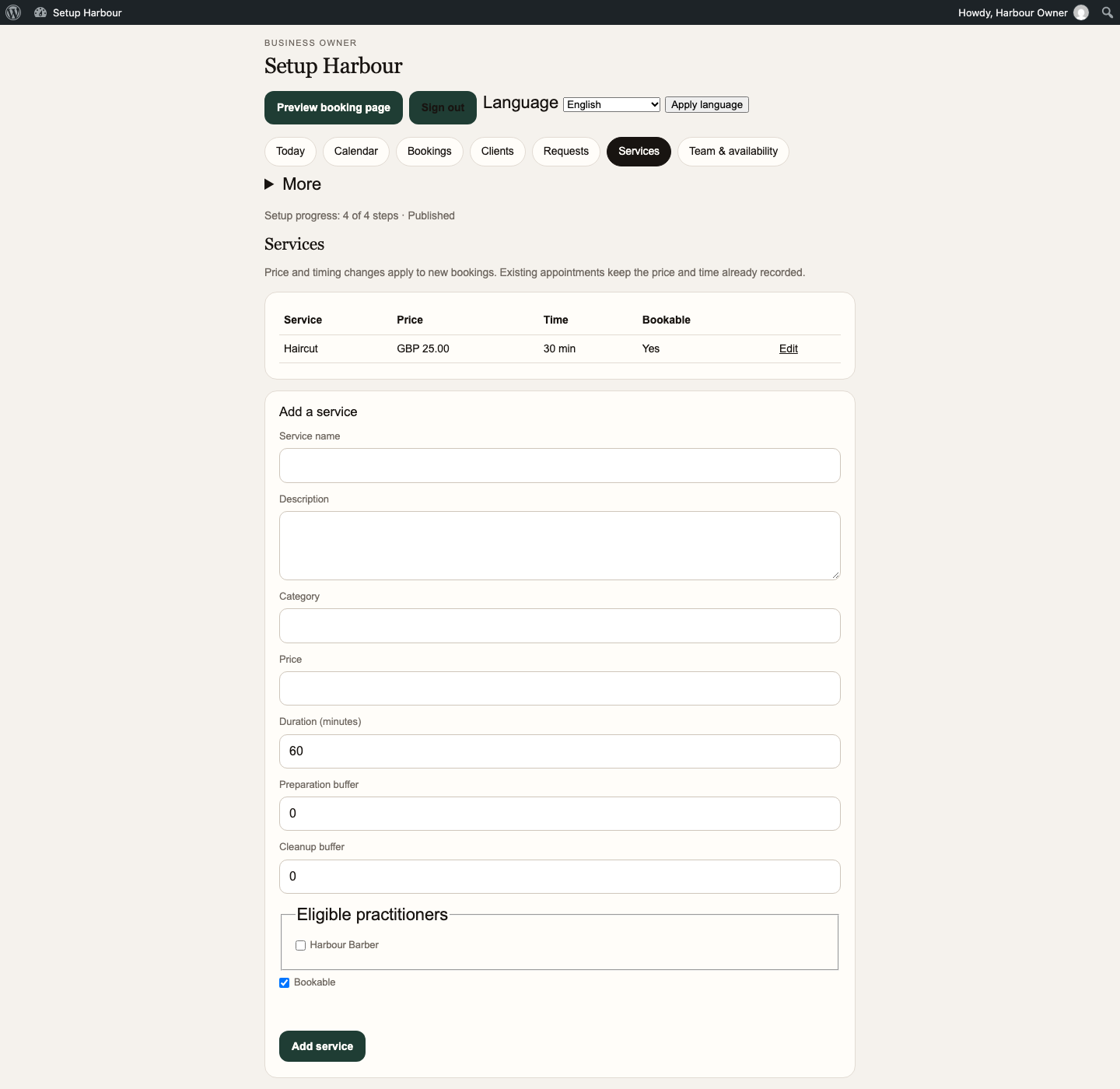
- Booking owner → Services → Add a service
Field reference
| Field | Example | What it does |
|---|---|---|
| Service name | A second name, such as Beard appointment in a recipe | Shown to customers after it is saved and bookable. |
| Description | A short plain description | Optional text on the service. |
| Category | The grouping customers see. Haircut appeared under Body even though first-use setup has no category field. | Choose the category deliberately for a second service. |
| Price | A GBP or IDR amount in the locked currency | Applies to new bookings. |
| Duration (minutes) | The recipe’s synthetic duration | Not treatment guidance. |
| Preparation buffer | 0 unless you need time before | Extra minutes, not another service. |
| Cleanup buffer | 0 unless you need time after | Extra minutes after the service. |
Action. Fill the form and press Add service.
Saved result. The saved Haircut row is the result this fixture reloaded. A second service was not saved here, so there is no second reloaded row to show.
Reload check. Reopen Services. A successful add appears as another row with Edit. That reload was not performed for a second service.
Safe recovery. If the new name is not visible, the save outcome is uncertain; the list alone does not prove that nothing was stored. Check the current business, any list filters, and the save message, then reload once. Do not immediately create the same service again. Use an explicit recovery action only if the application offers one for that operation; otherwise ask support to confirm whether the record exists. Recovery after an uncertain second-service save was not exercised here.
Choose eligible practitioners
- Role
- Business owner
- Prerequisites
- At least one practitioner exists. Haircut listed Harbour Barber.
- Menu path
- Booking owner → Services → Add a service, or Edit on a saved service. The fieldset is Eligible practitioners.
Field reference
| Field | Example | What it does |
|---|---|---|
| Eligible practitioners | Tick only the people who may perform that service. Haircut showed Harbour Barber. | An unticked person is not offered for that service. |
| Bookable | Ticked for Haircut, which then showed Bookable Yes | Unticked, the service is not offered for new bookings. |
Action. Tick the people for this service, tick Bookable if it should be offered, then press Add service or Save service.
Saved result. Haircut stayed bookable for Harbour Barber. A service limited to one of two people was not saved on this fixture.
Reload check. Reopen the service editor and check whether the intended people and Bookable value remain selected. That editor readback was not captured in this setup walk. Seeing Haircut under Body on the booking page confirms its public display, not the complete stored eligibility selection.
Safe recovery. If the wrong person is ticked, edit the service, change the ticks, and save again before a customer books.
Add another practitioner and hours
- Role
- Business owner
- Prerequisites
- The first person already appears under Team & availability. Eligible-practitioner ticks are not a sign-in.
- Menu path
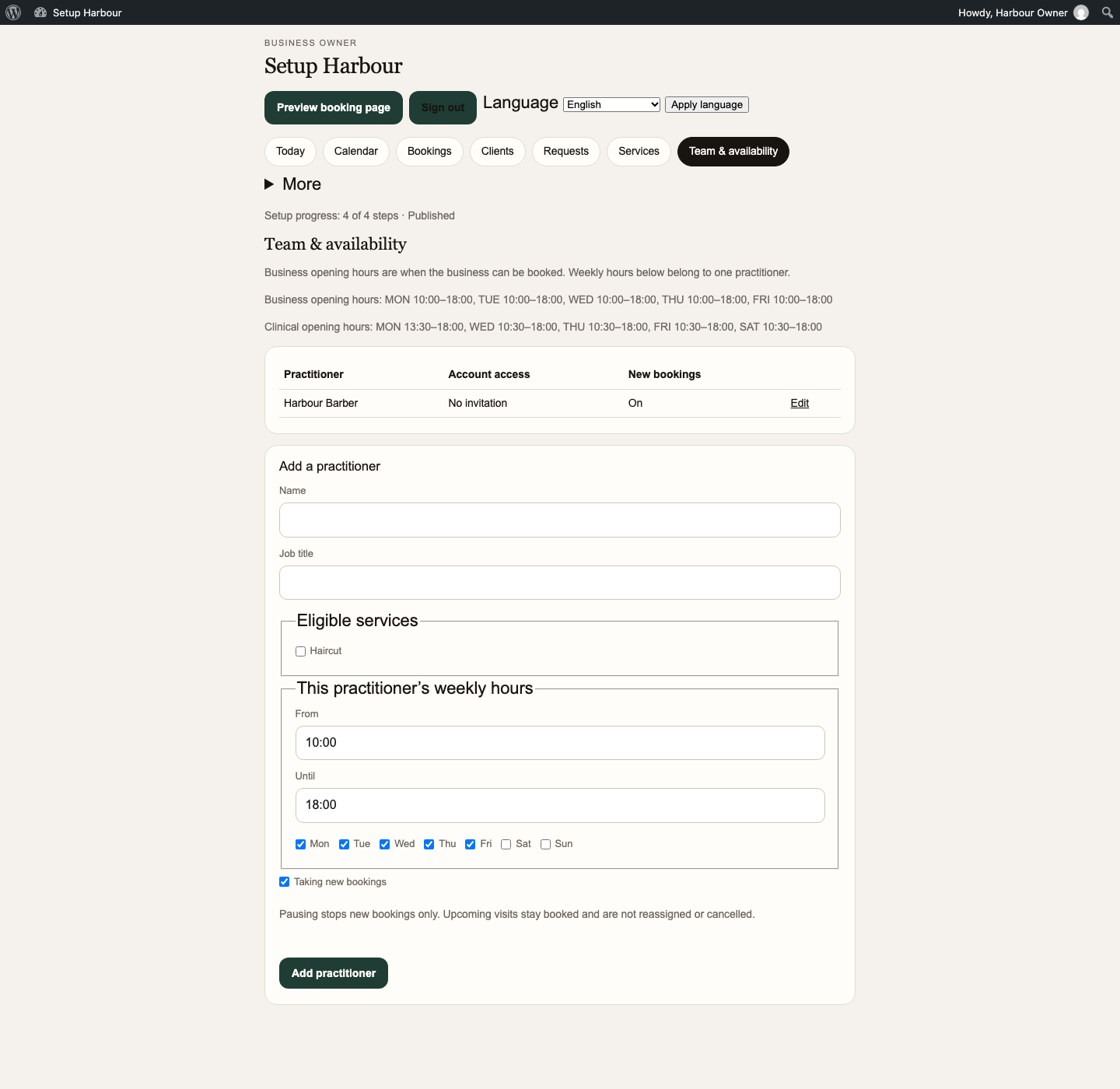
- Booking owner → Team & availability → Add a practitioner
Field reference
| Field | Example | What it does |
|---|---|---|
| Name | The second person’s name | The record customers can be matched to. |
| Job title | A short role label | Shown with the person. Not a permission. |
| Eligible services | Tick the services this person may perform. Haircut was listed. | Matches the service eligibility control. |
| This practitioner’s weekly hours | From, Until, and the day ticks Mon through Sun | That person’s window. The business opening hours line is separate. |
| Taking new bookings | Leave on if this person should be offered | The screen says pausing stops new bookings only. Upcoming visits stay booked. |
Action. Press Add practitioner after the name, services, and hours are set.
Saved result. The saved result on this fixture is Harbour Barber only, with Account access “No invitation” and New bookings On. A second person was not added. The same screen also showed a Clinical opening hours line that this walk did not enter.
Reload check. Reopen Team & availability. A successful add lists the new name. This fixture did not reload a second name.
Safe recovery. If the new person is not visible after reloading, check the current business, any list filters, and the save message before taking another action. A missing list row is not proof that no practitioner record was created. Do not immediately submit another new person; use a recovery action only if the application offers one for the original operation, or ask support to check. Do not send an invitation as a recovery shortcut. The separate Staff invitation catalogue evidence was not repeated for Harbour Barber.
Draft and publish one ordinary question
- Role
- Business owner
- Prerequisites
- A bookable service exists. Name and email stay required without this question.
- Menu path
- Booking owner → More → Questions
Field reference
| Field | Example | What it does |
|---|---|---|
| Label | Anything we should know about this visit? | The question text. |
| Help | Optional note for the appointment. | Shown with the question. |
| Type | short_text. Other shown values are long_text, number, date, single, multi, and checkbox. | Chooses the answer control. |
| Asked during | Booking. The other choice is First registration. | Booking shows it on the booking form. |
| Services | Leave every service unticked to ask it for all services. Haircut can be ticked to limit it. | The page states that unticked means all services. |
| Required | Left unticked | The question stays optional. |
Action. Press Save draft, check the draft preview, then press Publish questions.
Saved result. Published version changed from 0 to 1. Live questions showed the label and help above.
Reload check. Reopen Questions. Published version stays 1 and the live question remains.
Safe recovery. Retire this question is on the draft. Use it only when the question should stop being asked. Publish questions again after a draft change.
Appearance, email, and exceptions
- Role
- Business owner
- Prerequisites
- The More menu is visible after publication. Opening a menu is not a completed save.
- Menu path
- Booking owner → More → Appearance, Emails, or Closures
Action. Do not treat those menu names as steps this walk completed.
Saved result. This walk did not save a colour, an email template, or a closure. Primary colour on Business basics was left unused. The catalogue record “Colours, type, and reset” is a reused earlier check, not a new result from this fixture. “Email template editing” was not repeated on 1.2.104. Leave says one approval does not demonstrate closures; closures were an earlier candidate.
Reload check. Not applicable. Nothing was saved here to reload.
Safe recovery. Use the linked catalogue limits before promising a logo, a policy paragraph, a changed email, or a closed day. The publish screen already says a mail filter does not prove delivery.
Catalogue boundaries for the menus this walk did not complete: Colours, type, and reset, Logo, policy text, and embed, Email template editing, Leave, and Staff invitation.